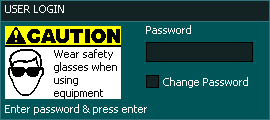
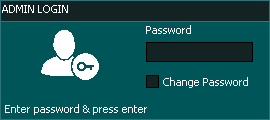
By default the system password is set to "HTG" (in capital letters) for both Admin and User logins.
INFORMATION: When the controller is powered up, Caps Key is enabled by default, as of v3.49 for G2 and v4.00 for G3 Caps key is not enabled.
INFORMATION: If want to lock Masso to prevent unauthorized use, Press CTRL + L and you will be prompted to re-enter the User and Admin Passwords.
Changing the User or Admin Password
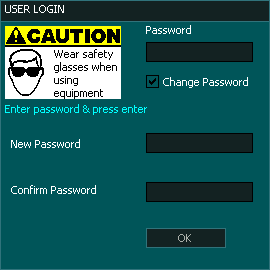
To change the User or Admin password Click on the Change Password in the Login box.
Enter the current password and press enter. Default Password is "HTG"
Enter the new password up to 5 characters long in the New Password box. (Passwords are case sensitive)
Enter the new password again into the Confirm Password box
Press Ok
Removing User login
To remove the user login leave the New Password and Confirm Password boxes blank and press Ok.
When you next start Masso the user password login box will not be presented.
Removing Admin Login Password
It is not possible to remove the Admin Login.
The Admin Password can be set a blank just like the user password but it will not remove the login.
When you set the Admin login to blank, select the Password box press the Enter Key to login.
Resetting Passwords
Should you lose or forget your passwords you need to download the Password reset or Password display file for your MASSO.
This can be downloaded from the myWORKSHOP portal
Before performing a password reset ensure that you have both the Password reset or Display file and a copy of your MASSO software. Mill, Plasma or Lathe.
G3 Password Display Process
Log into myWORKSHOP and download the Password Display software and a copy of the software you are currently running on MASSO if you do not already have it.
Copy the Password Display software into the MASSO directory of your flash drive along with the current software version you are running on your MASSO.
Restart MASSO and immediately press the F1 key multiple times or tap the screen of MASSO Touch until the software load screen appears
Select the Password Display Software v1.02 and install.
Press ESC once the install process is complete.
This will display both your User and Admin Passwords on screen.
Note these down as you will need these to log in later.
Restart MASSO pressing the F1 key multiple times until the software load screen appears
Select the MASSO software you are running on your MASSO and install.
Press ESC once the install process is complete.
MASSO will start and you can now login using the passwords you noted down from earlier.
G2 Reset Process
Log into myWORKSHOP and download the Password Reset software and a copy of the MASSO software you are currently running on MASSO if you do not already have it.
Copy the Password reset software into the Root directory of your flash drive.
Restart MASSO and the software will automatically load.
Wait for the software to complete loading. This will reset both your User and Admin Passwords to default "HTG"
Copy the MASSO software files into the Root directory of your flash drive.
Restart MASSO and the software will automatically load.
Wait for the software to complete loading and restart MASSO.
You can now login using the default password. "HTG"
Resetting the Password does not change the configuration settings of Masso.


 Spanish
  French
  German
  Simplified Chinese