Spanish
  French
  German
  Simplified Chinese
 Auto Loading G-code
G-Code files can be automatically loaded by MASSO for special production runs and below are the different ways of automatically loading gcode files.
Automatically loading gcode file on power up or when connecting USB pen drive:
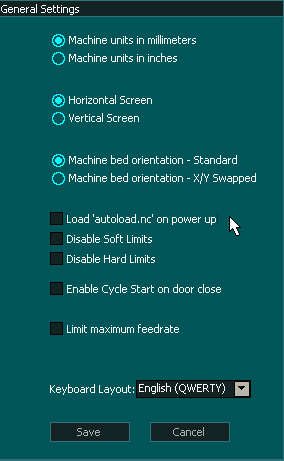
- Go to "F1-Setup" screen and open the "General Settings" window.
- Tick the Load 'autoload.nc' on power up option and click Save button.
- Now MASSO will look for a file autoload.nc on the USB Flash drive every time it powers up or if a USB Flash drive is connected. Once the file is found, its automatically loaded and pressing cycle start will start the job.
INFORMATION: The autoload files must be in root folder of the USB Flash drive.
Loading gcode file on Input signal going high:
- Go to "F1-Setup" screen and go to the "INPUTS" list.
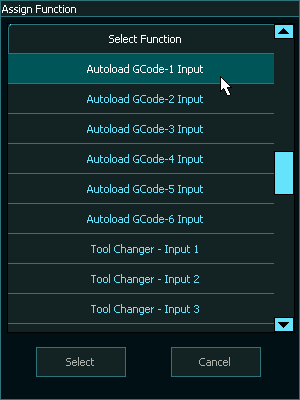
- From the INPUTS list select one of the free inputs and select Autoload GCode-1 Input option and double click to assign the function to the input.
- When this input goes HIGH, MASSO will look for a file autoload1.nc on the USB pen drive, once the file is found, its automatically loaded and pressing cycle start will start the job.
INFORMATION: You can assign up to 6 autoload functions on inputs.
INFORMATION: The autoload files must be in root folder of the USB pen drive.