


 Spanish
  French
  German
  Simplified Chinese
 Wi-Fi Connectivity
MASSO comes with Wi-Fi hardware and software to easily connect your MASSO controller to a Wi-Fi network.
All MASSO G3 & MASSO Touch controller come with WiFi installed and you just need to download MASSO Link software to use it
With the MASSO Link software, users can easily view the real-time status of your MASSO controller remotely, transfer gcode files to MASSO from your PC, get tool data from MASSO's memory and generate tools list document that can be used with CAM software.
INFORMATION: MASSO Link software download link.
MASSO Link software is available for Windows, macOS, and Linux.
Running "MASSO Link" software on PC
INFORMATION: Masso link software uses UDP ports 11000 to 11050 for sending data and 65535 for receiving data.
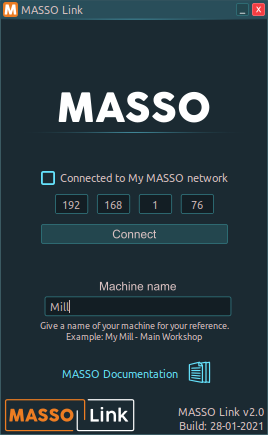
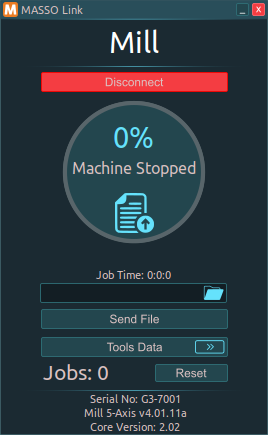
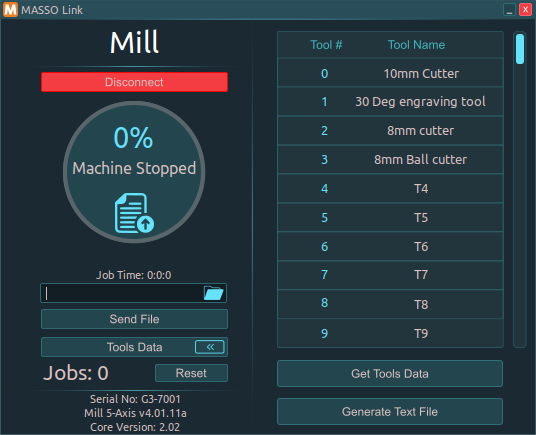
Creating your own Wi-Fi network
If a Wi-Fi network is not available, MASSO can be used to create a Wi-Fi network and a PC can be connected directly to MASSO via this Wi-Fi network. This feature is called My MASSO Network.
Tick the Make "My MASSO Network", enter a network name (SSID) that you would like to call this network, and enter the security key. Click the Enable button.
At this stage, the Wi-Fi network will show up on your PC in the Wi-Fi networks list and you can connect to this network and use the MASSO Link software.
INFORMATION: The security key must be between 8 to 32 characters long.
Transferring gcode files to MASSO
INFORMATION: Please note that a USB Flash drive needs to be connected to MASSO to store these files.
- Once connected, gcode files with .txt, .nc, .cnc, .tap, .eia extensions can be dragged and dropped on to the MASSO Link software window.
- A folder name can be given and all the files sent to MASSO will be saved on the USB pen drive in this folder, else keeping this blank will save the files on the root folder of the USB pen drive.
- Click Send File to send the file to MASSO.
INFORMATION: File transfer speed is up to 2Mb per minute and is dependent on several factors including Wi-Fi Signal and flash drive write speed. A poor Wi-Fi signal may slow down the file transfer process by requiring data to be resent. A quality, branded USB2 or USB3 flash drive is recommended as modern flash drives will have higher internal write speeds. While the transfer rate may be slower than your flash drive write speed the data is not written to the drive until a block of data is received at which time it will write the data and request the next block. Slow write speeds within the flash drive will become a determining factor in overall transfer speed. A slow flash drive can half the transfer speed of a file doubling the amount of time it needs to send.
Installing the Wi-Fi module
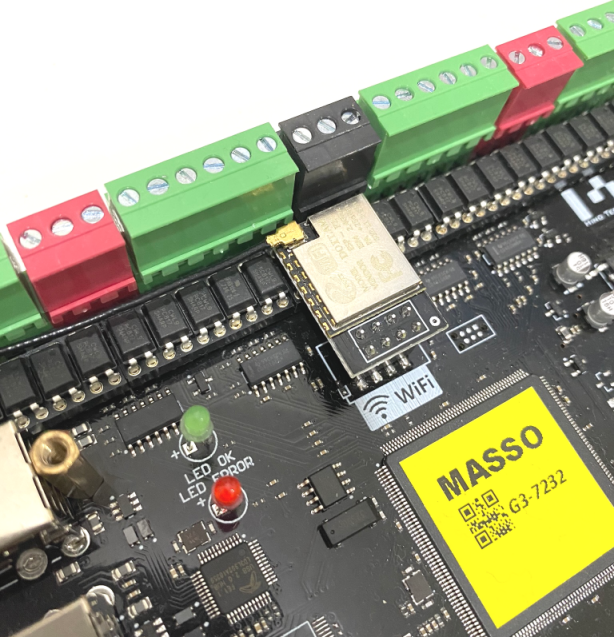
The WiFi module is required to be plugged into MASSO's Wi-Fi connector before being able to use the WiFi functionality. The antenna cable and antenna must also be installed.
All MASSO G3 & MASSO Touch controllers come with the WiFi module installed ready to connect to your network.
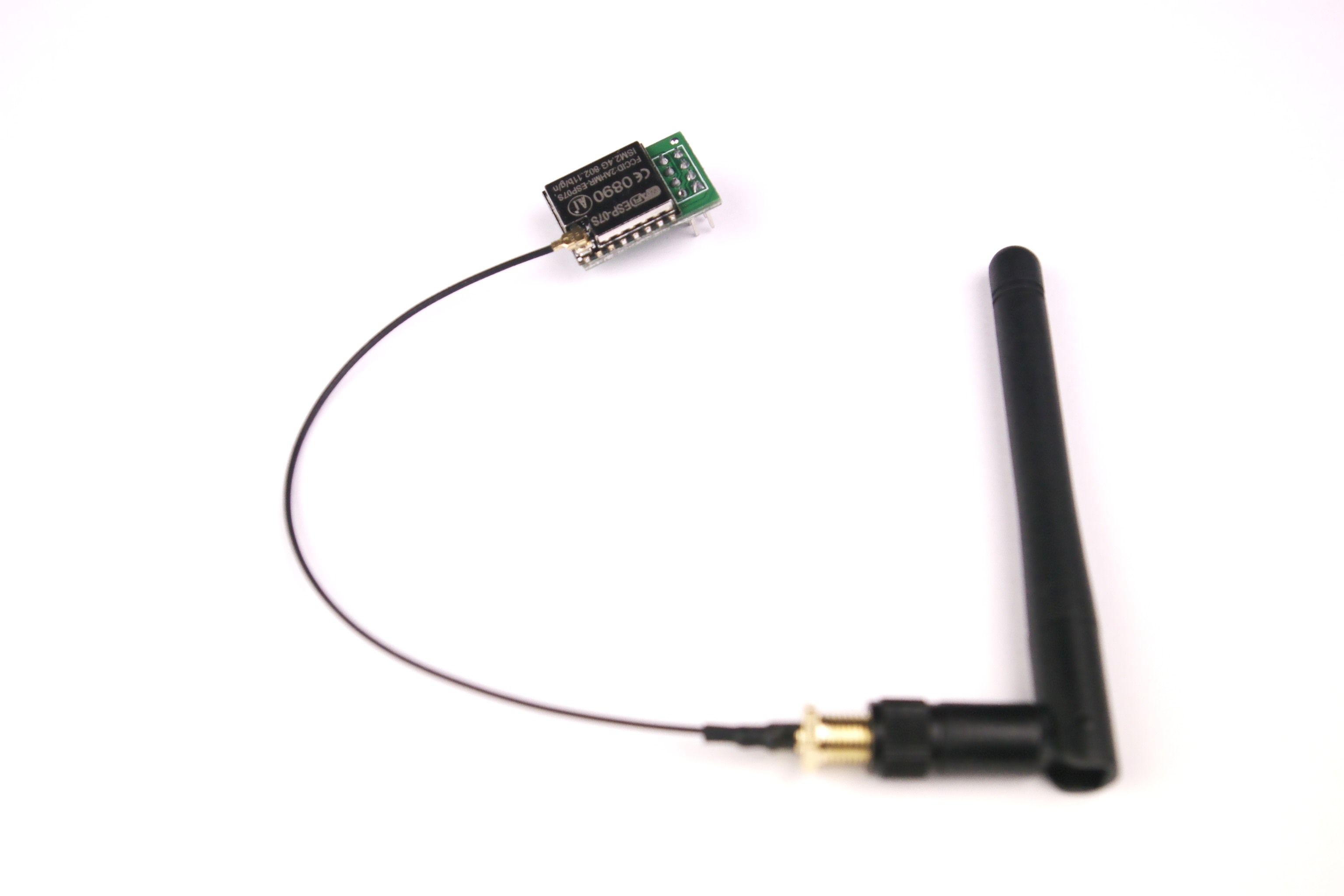
- Switch off the MASSO and remove the main label cover and slide out the label panel towards the left side.
- After installing the WiFi module the label panel can be installed back and MASSO powered up.
CAUTION: Make sure to install the WiFi module in the correct direction as shown in the below photo.
Connecting to WiFi network
INFORMATION: MASSO Wi-Fi module supports 2.4GHz frequency (IEEE 802.11 b/g/n).
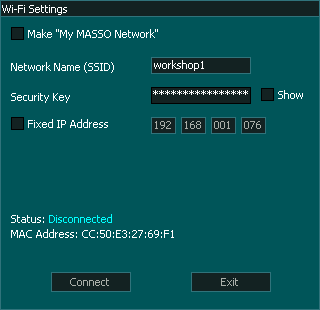
In the F2 - Program & MDI screen, click the Wi-Fi icon.
Enter the name (SSID) and security key of the Wi-Fi network that you would like to connect to. If you would like to use dynamic IP as provided by your Wi-Fi network then leave the Fixed IP Address un-ticked and click the Connect button. Once connected the IP address provided by your Wi-Fi network is displayed.
INFORMATION: It's a good idea to use the Fixed IP Address option as every time you connect to your Wi-Fi network, the IP address might be changed by the router. As the IP address is required by MASSO Link software, the new IP address needs to be updated on the PC to be able to connect to the MASSO. Using the Fixed IP Address solves this issue.
INFORMATION: The maximum length of SSID is 30 characters and 60 characters for the security key.
Troubleshooting
MASSO link on an existing Wi-Fi network
The Following video shows how to set up MASSO link on a PC however the method of setup and use is the same across all platforms.
Use this method if you have an existing Wi-Fi network.
Make my MASSO network
Use this if you method if you do not have an existing Wi-Fi network or you wish to use a direct point to point connection from MASSO to your PC

