Spanish
  French
  German
  Simplified Chinese
 MASSO QR Scanner
INFORMATION: This feature is only available on MASSO G3 & MASSO Touch version 5.0 software or higher
What is the MASSO QR scanner?
The QR Scanner feature is only available for the MASSO G3 or MASSO Touch. It is not available for the MASSO G2.
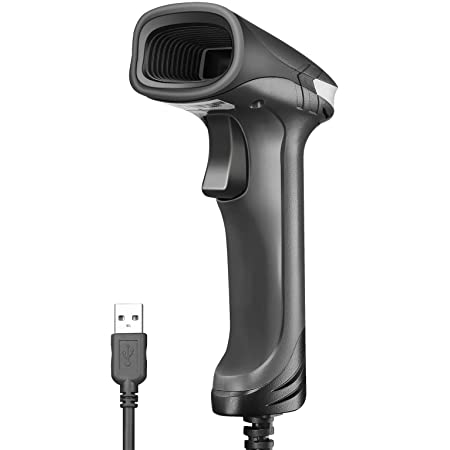
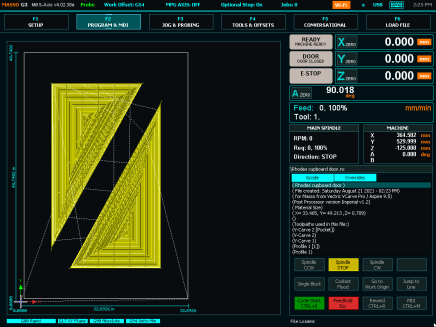
It uses a standard 2D barcode scanner capable of reading QR codes to allow users to load their GCode files from the flash drive ready to run.
It works in concert with MASSO Link which has the ability to generate the required QR code and can send the file direct to MASSO via Wi-Fi.
Requirements
USB barcode scanner capable of reading QR codes.
Some scanners are only capable of reading 1D barcodes which are the type seen on food product packaging in supermarkets so please check with your supplier that the scanner does work with standard QR codes.
The Scanner must also be able to be configured to simulate a USB HID-KBW. In this mode the the reading module in the scanner will become a virtual keyboard to output data to the host.
The scanner also needs to be set to send a CR (carriage return) at the end of the scanned code.
Modern barcode scanners come with a user manual that include a set of series of barcodes that can be scanned by the reader which will program the barcode scanner to give the required outputs.
These may include
Communication interface: USB-KBW, USB-COM or HID-POS
Beep sound: On,Off, High, Medium, Low
End Character: None, Add CR, Add CR + LF, Add LF, Add Tab
Scan mode: Manual (trigger), Contineous or Auto sensing
Barcode type: QR enable, QR Disable
Setting up your scanner
The link below will take you through the setup and install process to connect your scanner to MASSO
https://docs.masso.com.au/getting-started-guides/installing-masso/qr_scanner
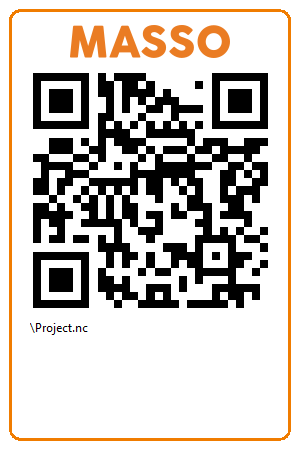
Generate QR code with MASSO Link
The link below will take you through the setup of MASSO Link and show how to generate your QR code
USING your QR Scanner
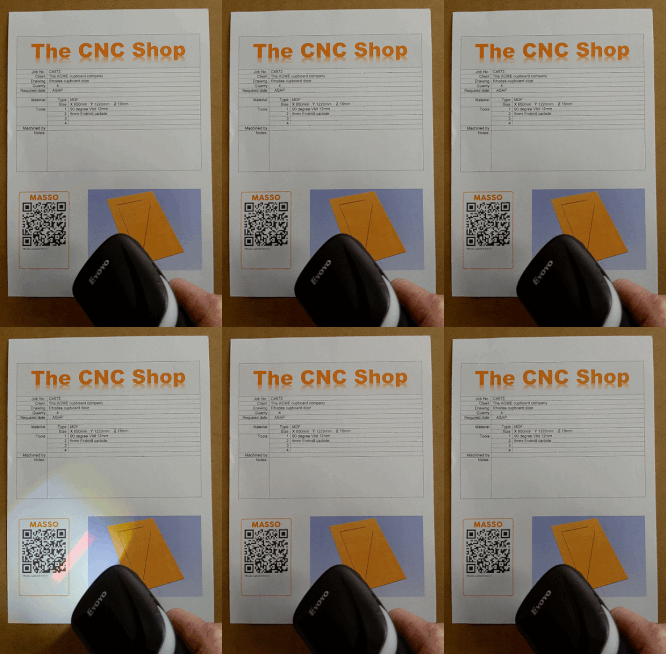

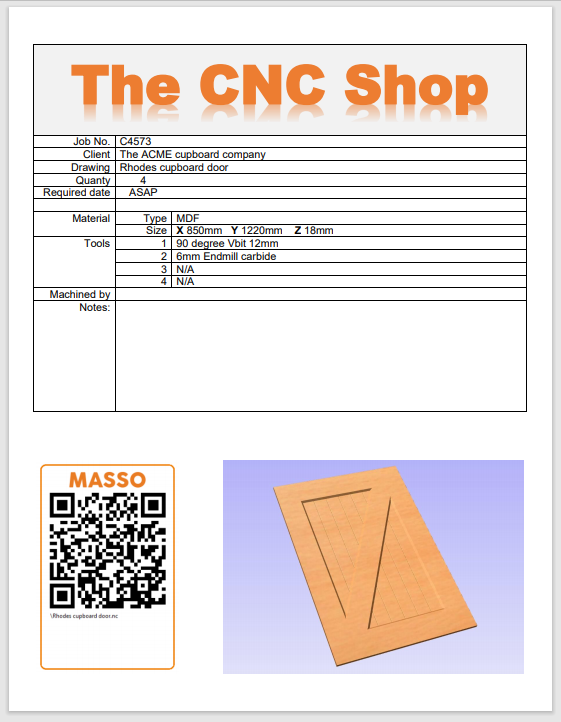
The QR Code can be taken to your machine in printed form or it can be scanned direct from the screen of a device such as a phone tablet or computer screen.
For home or industrial applications a job sheet can be created by the CAD/CAM team with the relevant information needed for the machinist to cut the file.
The machinist can have a book of standard jobs on hand for they can choose from and scan as need.
The use of a scanner can improve workflow and reduce errors.